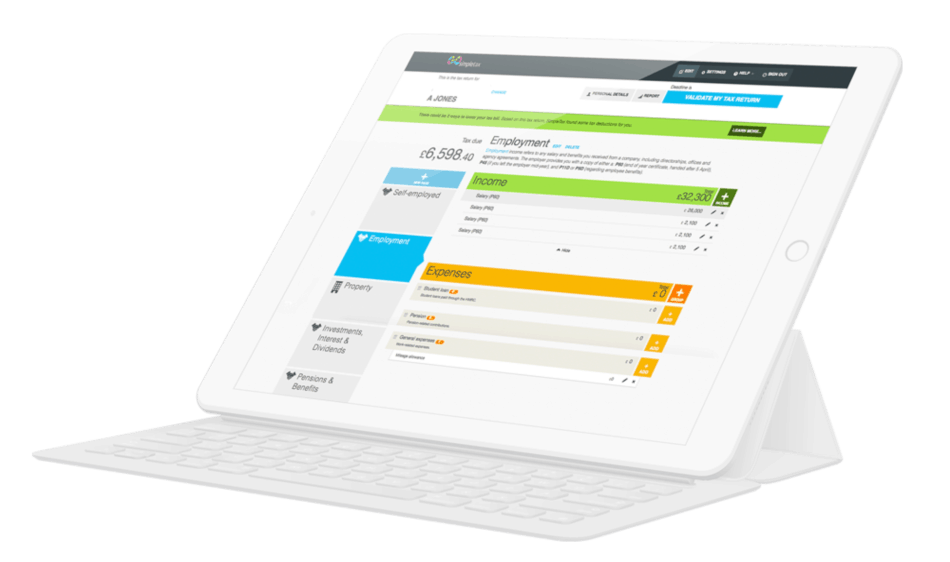
Filing your Self Assessment doesn’t have to be complicated or time-consuming. In fact, GoSimpleTax has been designed for sole traders and freelancers and guides you through your tax return step-by-step in a stress-free way.
Here, we walk you through exactly how to use the system to complete your Self Assessment – with screenshots, real examples and insider tips from our expert team.
Keep scrolling to get the most out of our Self Assessment tax return software…
Step 1: Create your GoSimpleTax account
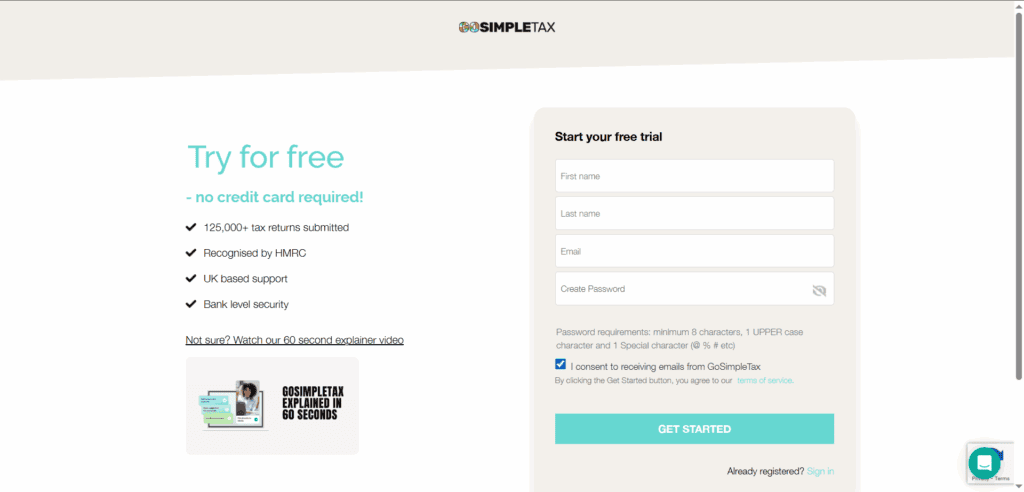
First things first, head to GoSimpleTax and create an account. You’ll be asked to enter your name, email address and create a password. It really is that easy!
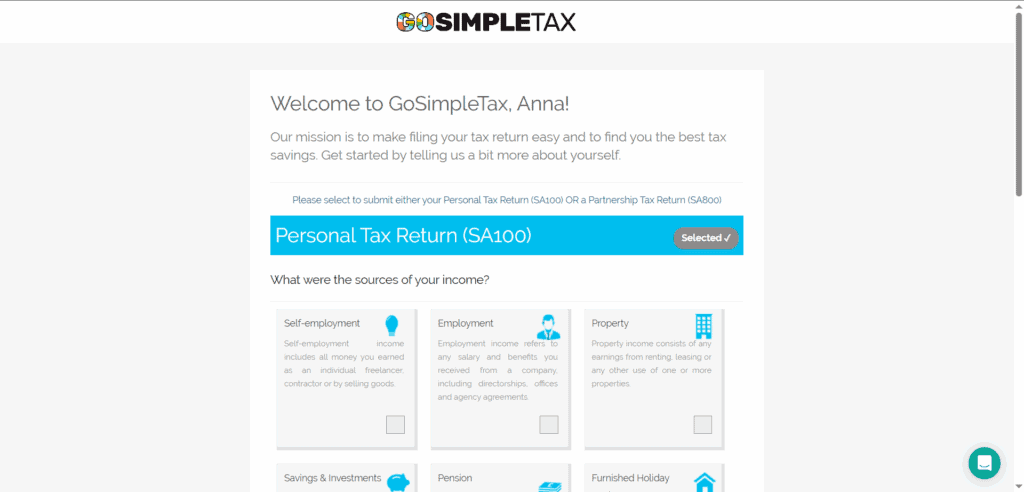
Then you need to choose whether you want to submit either your Personal Tax Return (SA100) OR a Partnership Tax Return (SA800).
Step 2: Answer a few simple set-up questions
Instead of throwing complicated tax forms at you, GoSimpleTax starts with a few easy questions to better understand your situation.
For example:
- What are your sources of income?
- Are you employed, self-employed or both?
- Do you rent out a property?
- Do you have any dividends, interest or capital gains?
Your answers determine which sections of the tax return are needed. So, you don’t have to complete pages that don’t apply to you.
Step 3: Check the tax year
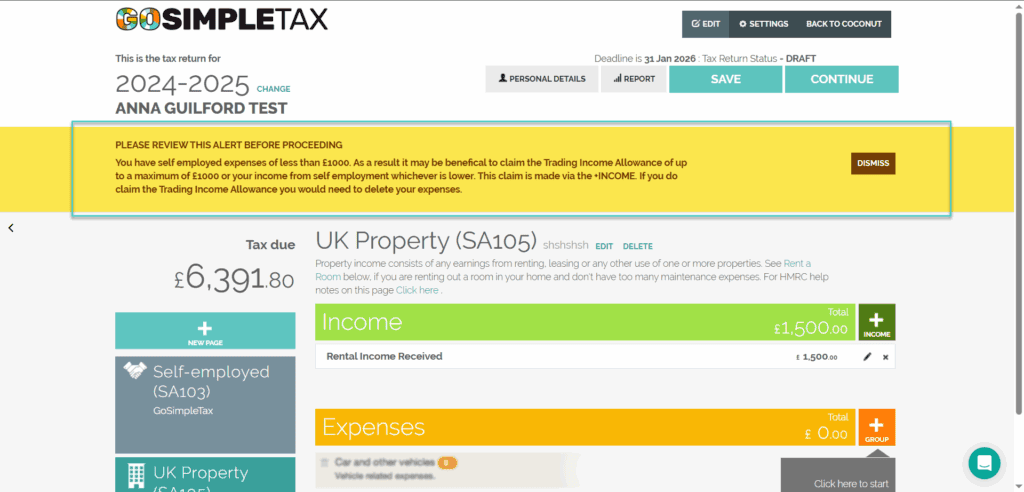
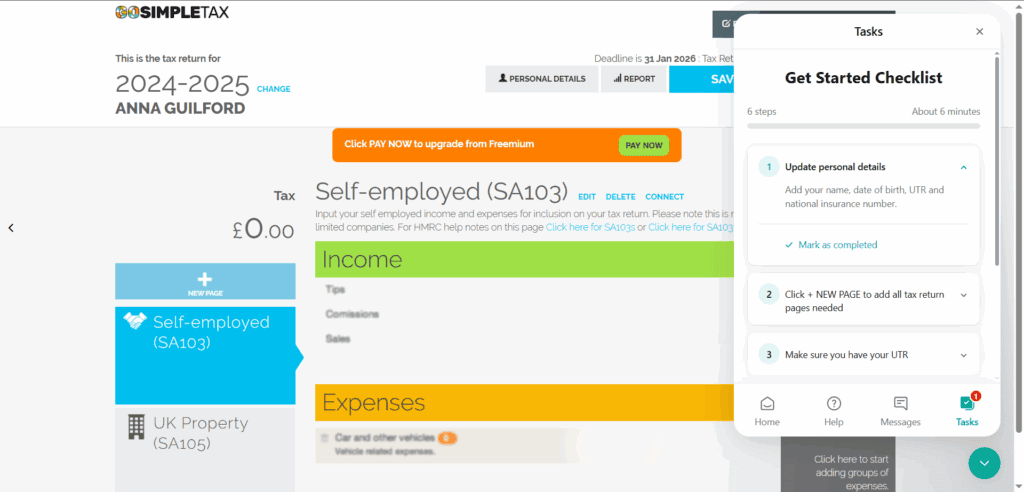
Once logged in, in the left hand corner, you’ll see the tax year for the tax return that you are submitting. Make sure this is accurate.
Step 4: Work your way through the initial tasks
If this is your first time using GoSimpleTax, a handy task checklist will pop up on the right hand side. It’s important you work your way through these in order and mark as completed as you go.
Update personal details – Add your name, date of birth, UTR and national insurance number.
Click + NEW PAGE to add all tax return pages needed – You can choose from employment, self employment, savings, residency.
Check you have a login to Government Gateway – You will need this to file your tax return to HMRC. Don’t worry if you don’t have one, we have a solution.
Gather all your tax documents together – Get your P60, P11d and savings documents.
Step 5: Enter your income
Next, you’ll enter your income. This might include:
- Employment income (from your P60 or payslips)
- Self-employment income
- Rental income
- Dividends and interest
- Other income (pensions, benefits, etc.)
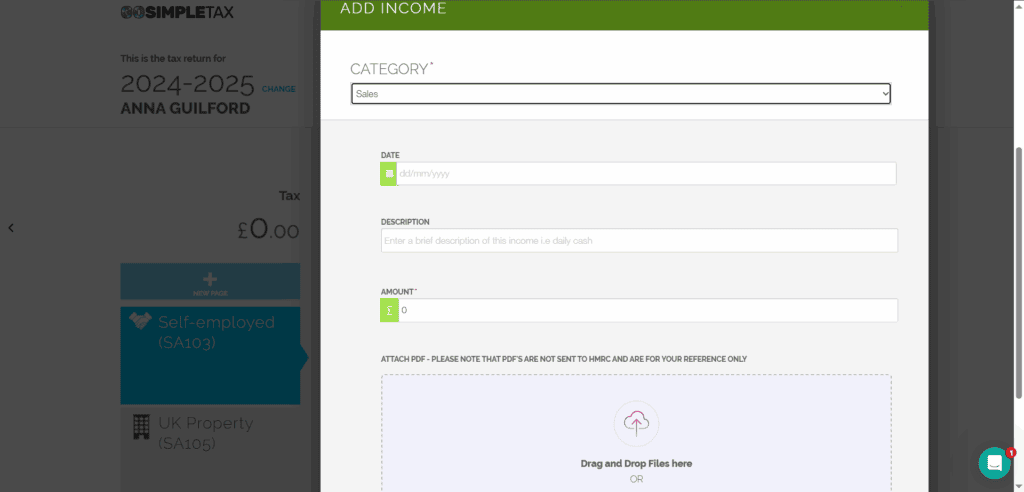
GoSimpleTax walks you through the process, asking you about the category, date, amount and description of the income. You can even upload a PDF of a receipt for your own reference.
Step 6: Claim expenses and allowances
This is where our system really shines. In this section, you’ll see a full list of all the potential areas where you could save on tax. Simply click the ones that apply to you and press save.
Then, work your way through and add the amount, date and description as well as a PDF receipt for your own records.
Louise’s tip: Don’t miss out on tax savings!
“GoSimpleTax suggests expenses and tax allowances you may be able to claim or may have missed to help you save on tax!”
Step 7: Review your tax calculation
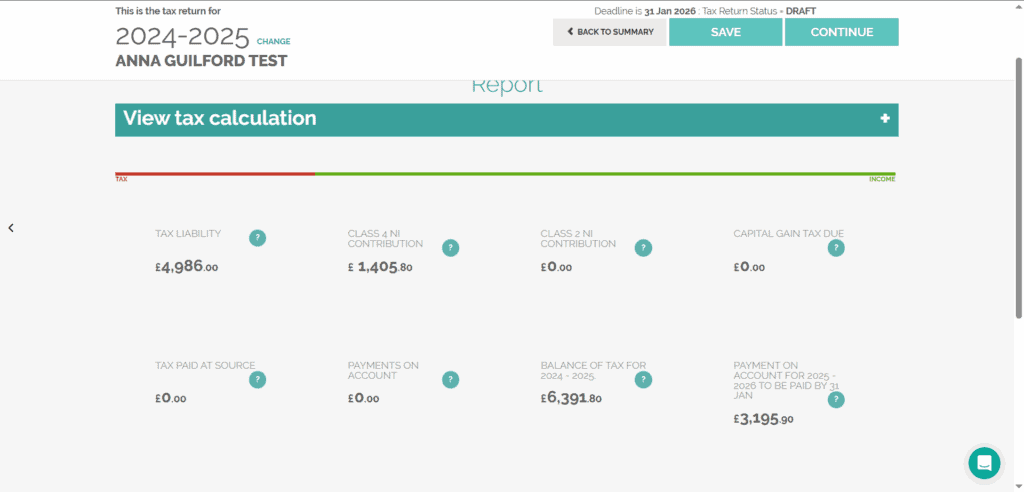
With your income and expenses entered, GoSimpleTax calculates your tax bill. You’ll then see:
- How much tax you owe (or are due back)
- What payments are due and when
- A breakdown of how your tax was calculated
- Everything is presented in clear, plain English.
Step 8: HMRC Gov ID or ID check
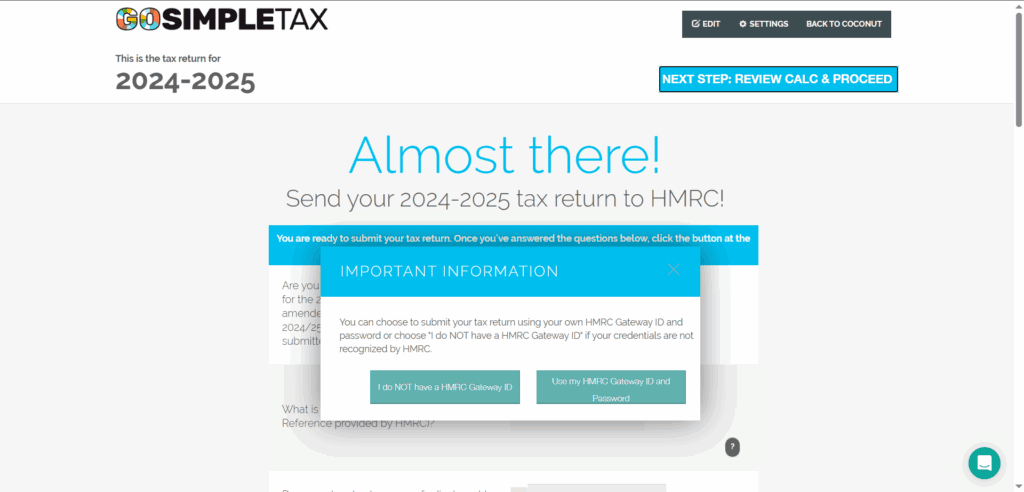
Once you are happy that your tax return is correct, you will need to enter your HMRC Government ID and password. Make sure you have self-assessment activated on this log in, otherwise HMRC won’t accept the submission.
Don’t worry if you don’t have an account with Self Assessment activated, you can choose to use our credentials instead. Simply click ‘Use GoSimpleTax Gov ID’ and follow the on-screen instructions, once you complete an ID check you will be able to use ours instead.
Step 9: Submit directly to HMRC
Aiden’s tip: Submit in seconds!
“GoSimpleTax allows you to submit your return plus supplementary pages such as SA109 and SA800 directly to HMRC. This is something HMRC’s own system doesn’t even support!”
Simply press the submit button and your return will be on its way. You’ll receive confirmation that HMRC has successfully received it too!
Step 10: Pay your tax
GoSimpleTax clearly shows you how much you need to pay, when it’s due and how to pay HMRC.
Even better, you’ll get reminders so you never miss a deadline!
Once paid, you can sit back and relax – until next year’s tax return!
Bonus tip for returning users, Zak’s tip: Copy last year’s return.
“Once you’ve submitted your first Self Assessment through GoSimpleTax, the next time you need to submit a return, it pulls through the data from the previous year to save you time.”
This means your personal details, property information, business details and recurring income sources will all be there.
Plus, if you and your partner both have property income, one person can complete the data and copy it across to the other account – saving double the time!
Make a start today
GoSimpleTax takes the fear and frustration out of Self Assessment. Whether you’re self-employed, a landlord or filing your first return, it guides you through everything and highlights ways to save tax. Plus, the submission to HMRC is all handled.
Ready to get started? Try GoSimpleTax today and complete your Self Assessment the easy way.
Blog content is for information purposes and over time may become outdated, although we do strive to keep it current. It's written to help you understand your Tax's and is not to be relied upon as professional accounting, tax and legal advice due to differences in everyone's circumstances. For additional help please contact our support team or HMRC.

5 Excellent Reasons to Choose Us to File Your Tax Return
Discover how to make tax returns a doddle...
Find out moreSelf Assessment and MTD Tax Returns: What £50K Earners Need to Know
02 Jun 2026
What happens after I file my Self Assessment tax return?
11 May 2026
What’s Changing Under the UK’s New Foreign Income Rules in 2026?
08 Apr 2026